Reallocate a payment to a different member
As a member of Accounting Functions, I want to move a payment that was applied to the wrong member onto the correct one, so that both members' ledgers end up accurate.
There are two different starting points for this, depending on how the original payment was taken — a direct/walk-in payment (rolled back) versus an employer-paid invoice (its checkoff row backed out). Use whichever section below matches how the original payment got into PRIZM.
Direct or walk-in payment: rollback, then reassign
Screens: Accounting > Payments, then Accounting > Bank Deposits, then Process Existing Funds
This is a three-step workflow, not a single click
Treat it as a checklist, in this exact order. Doing step 2 out of order (or before the rollback is fully reflected) is the single most common cause of "it's not working" reports on this workflow. (IUOE-2662)
Per a step-by-step walkthrough JayStar's Andrei Pop produced for this ticket (rollback
transactions guide.docx, attached to IUOE-2662 —
screenshots not reproduced here per this repo's redaction policy, but every step below is taken
directly from its captions):
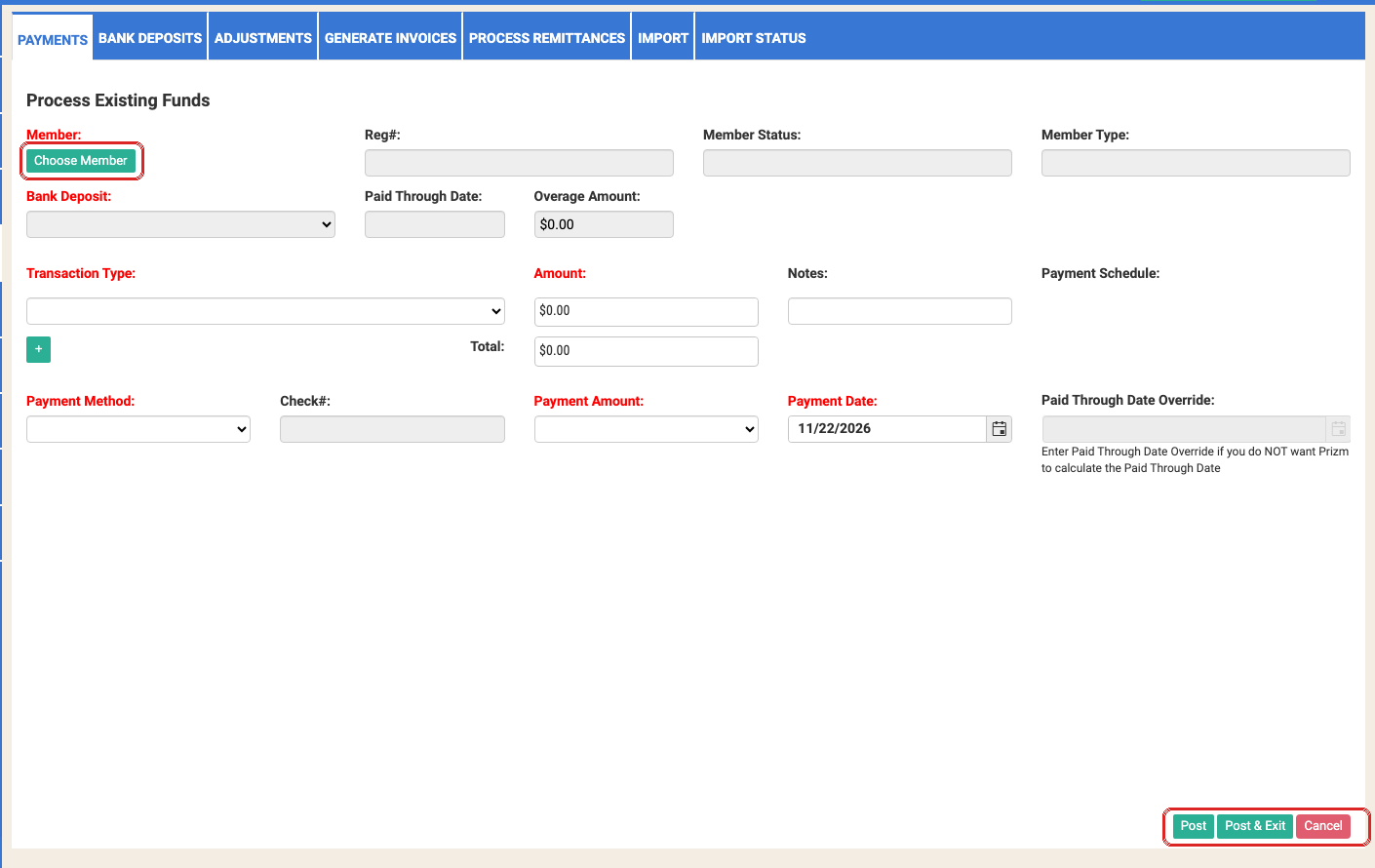
- Roll back the original payment: Accounting > Payments, expand the payments list using the + icon next to "Process Existing Funds," then click Rollback on the record you want to reverse. Confirm Yes on the warning dialog, then pick the reason and type of rollback (e.g. Back Out vs. Void — Back Out releases the payment to be reused; Void is for bad checks/credit-card payments and does not release it for reuse) on the Rollback dialog that follows. A confirmation alert appears once it completes, and the page reinitializes showing a negative payment entry for the original (incorrect) amount — this is expected, not an error.
- In Bank Deposits, select the bank account the funds were rolled back to, find the now-unallocated deposit row, and assign it to the new member before submitting — this step only works while the check is still unposted, so do it immediately after the rollback, not later. If Bank Deposits won't let you reassign the row, the rollback hasn't actually been reflected yet — don't assume the feature is broken.
-
Back in Accounting > Payments, use Process Existing Funds, choose the newly-assigned member, assign the payment item(s), then click Post (to stay and process another) or Post and Exit. The new payment appears at the top of the Payments list; spot-check the member's own Payment History tab to confirm it landed correctly.
Employer-paid invoice: back out the checkoff row, then invoice the right member
Screens: Employer (or Jobsite) > Checkoff tab, then Accounting > Generate Invoices, then Accounting > Process Remittances
A different starting point applies when the original payment came in through an Employer-paid invoice rather than a direct/walk-in payment — there's no "Rollback" button on an employer checkoff record. Per JayStar's Anna Fratczak, answering this exact "how to" question on IUOE-2840. The Checkoff Details popup itself (step 1) is confirmed live; the per-member Delete button in steps 2–4 is Anna's description, not yet independently reproduced click-by-click:
-
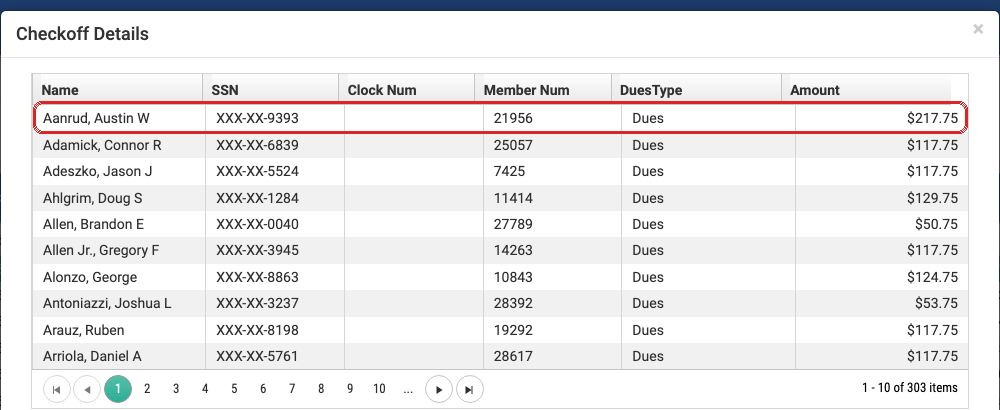
Open the Employer (or Jobsite) record's Checkoff tab and double-click the checkoff row that included the incorrectly-invoiced member — this opens a Checkoff Details popup listing every member on that deposit.
-
In the checkoff popup, click Delete on that member's row, then confirm on the popup that appears. This removes the payment from the incorrect member (both Payments and Dues History) and writes a negative payment record for them as the reversal.
- The funds return to the employer as unallocated funds, visible in the lower-left of Process Remittances: if the check had been fully allocated, it reopens showing the backed-out value; if it wasn't fully allocated to begin with, the funds just add back to the existing unallocated balance.
- Create a new supplemental invoice for the correct member, then pay that invoice using the now-unallocated funds.
Things to watch out for
Step 2 has a narrow window
If the check posts (or appears to post) before you get to Bank Deposits, the member-name edit option disappears. If that happens, re-verify the rollback actually completed before assuming the workflow itself is broken.
A backed-out checkoff row can short the member on overage, with no clean fix yet
Testing against the employer-paid-invoice path turned up more than one case where backing out a member's checkoff row didn't return the full original amount — e.g. a $134.75 payment only came back as $129.75, and a $120.75 payment came back as $116.75 with the remaining $4.00 landing in overage instead. JayStar (Anna Fratczak) confirmed PRIZM doesn't currently return a negative overage amount in this scenario, and asked for a dedicated ticket on it — as of this writing there's no confirmed fix, so double-check the backed-out total against the original payment before creating the supplemental invoice, and don't assume a shortfall is you doing something wrong. (IUOE-2840)
A rollback requires a comment explaining why
Per the signed BLR, performing a rollback requires entering a comment stating why it was done. Don't skip or stub out this field — it's the only documented record of the business reason once the payment is unposted.
Rollbacks are access-controlled and leave an audit trail
Per the signed BLR, rollback is gated by role-based security (only users with the
appropriate role can perform it), and the system records which user performed the rollback.
The Roles & Security Matrix's Accounting rows (fdd-docs/assets/04.Final/IUOE 399 FDD
Common 16.2.1 Roles and Security Matrix 4-2-2025.md) don't break out "rollback" as its own
row — Bank Deposits and the other Accounting screens are only listed with a blanket
Add/Update permission, so which specific roles are gated for rollback specifically isn't
confirmed from the matrix as written.
Rollbacks show up on the member's payment history
Per the signed BLR, a rollback is itself a visible entry on the member's payment history, not a silent reversal — so after completing this workflow you (or anyone reviewing the member's history later) should expect to see the rollback event alongside the original payment and the reallocation.
This is the same underlying concept as reconciliation discrepancies
Reallocating funds and reading a discrepancy report both come back to the same allocated-vs-applied ledger model — see Reconcile an invoice discrepancy report if the member you're reallocating to also shows a discrepancy afterward.